Campaign Management with Targetor
This guide explains how to manage survey campaigns using Targetor, Askalot's campaign orchestration service. Targetor enables you to organize research projects, import respondents, assign interviewers, and track survey completion across demographic segments.
Core Concepts
Entity Hierarchy
Targetor organizes survey research using this hierarchy:
Project
├── Questionnaire (links to QML file)
├── Sampling Strategy (defines target demographics)
├── Respondent Pool (generated or manual)
│   └── Respondents (survey targets)
└── Campaign
    ├── Pool (references respondents)
    ├── Interviewers (optional, for phone & in-person interviews)
    └── Surveys (individual sessions)
From Respondents to Surveys
The following diagram illustrates how individual surveys are generated from a large respondent population:
flowchart TB
    subgraph source["📊 Respondent Database"]
        RG["<b>All Respondents</b><br/><small>Thousands of contacts with<br/>demographic attributes</small>"]
    end

    subgraph strategy["🎯 Sampling Strategy"]
        SS["<b>Target Distribution</b><br/><small>Gender: 50/50<br/>Age: 18-24 (15%), 25-34 (30%)...</small>"]
    end

    subgraph pool["👥 Respondent Pool"]
        RP["<b>Representative Sample</b><br/><small>Selected respondents matching<br/>target demographics</small>"]
    end

    subgraph campaign["📋 Campaign"]
        direction LR
        Q["Questionnaire<br/><small>(QML)</small>"]
        CA["Campaign<br/>Assignment"]
        Q ~~~ CA
    end

    subgraph surveys["✉️ Surveys"]
        S1["Survey 1"]
        S2["Survey 2"]
        S3["Survey 3"]
        SN["..."]
    end

    RG -->|"Filter & Select"| SS
    SS -->|"Generate Pool"| RP
    RP -->|"Assign to Campaign"| CA
    Q -->|"Define Questions"| CA
    CA -->|"Create Individual<br/>Survey Instances"| S1
    CA --> S2
    CA --> S3
    CA --> SN

    style source fill:#e8f4fd,stroke:#1976d2
    style strategy fill:#fff3e0,stroke:#f57c00
    style pool fill:#e8f5e9,stroke:#388e3c
    style campaign fill:#f3e5f5,stroke:#7b1fa2
    style surveys fill:#fce4ec,stroke:#c2185b
Projects group related questionnaires, pools, and campaigns for organizational purposes.
Questionnaires reference QML files that define the survey structure, questions, and validation rules.
Sampling Strategies define target demographic distributions (e.g., 50% male, 50% female) with configurable factors and selection algorithms. Strategies are reusable templates—the same strategy can generate multiple pools over time, each selecting fresh respondents.
Respondent Pools are collections of respondents selected for a specific campaign. Pools can be:
- Strategy-generated: Algorithmically selected to match target distributions
- Manual: Hand-picked respondents for specific use cases
Pools Are Not Reusable
Unlike strategies, pools are designed for single-campaign use. Respondents who have participated in research are generally not selected again—this respects their time and avoids survey fatigue. When you need respondents for a new campaign, generate a fresh pool from your strategy rather than reusing an existing pool.
Campaigns are active data collection efforts. Each campaign links one questionnaire to one respondent pool.
Respondents are survey targets with demographic data. They access surveys via magic links without platform authentication.
Interviewers are platform users who facilitate interviews by phone or in person. They are optional—campaigns can run in self-administered mode where respondents complete surveys independently.
Respondents vs. Users
Understanding the distinction between respondents and users is critical:
| Aspect | Respondent | User |
|---|---|---|
| Purpose | Survey target | Platform operator |
| Authentication | Magic link (no login) | Platform login |
| Demographics | Age, gender, location, custom attributes | Role-based access |
| Source | CRM import, panel provider, manual entry | Created in Roundtable |
Respondents receive survey invitations via email with magic links. They never log into the platform.
Users with the interviewer role can facilitate surveys on behalf of respondents in interviewer-assisted mode (phone or in-person).
Getting Started
Step 1: Create a Project
Projects organize your research. Navigate to Targetor and click "New Project".
Project Settings:
- Name: Descriptive name (e.g., "Q1 2026 Customer Research")
- Description: Brief overview of research objectives
- Owners: Users who can manage the project
Step 2: Upload a Questionnaire
Link a QML file to your project:
- Click "New Questionnaire"
- Select your project
- Upload or reference a QML file (e.g.,
customer-satisfaction.qml) - Set version and status (draft, active, archived)
QML Design
Design questionnaires in Armiger before uploading. See Creating Surveys for QML syntax.
Step 3: Create a Campaign
Create a campaign to begin data collection:
- Click "New Campaign"
- Select project and questionnaire
- Configure campaign settings:
- Name: Campaign identifier
- Status: Draft, Scheduled, Active, Paused, Completed
- Start/End Dates: Optional scheduling
Step 4: Import Respondents
Import survey targets into your respondent database. Targetor supports multiple import methods:
Manual Entry:
Create respondents one at a time with full demographic profiles.
Bulk Import (CSV):
name,email,age,gender,location,external_id,source_system
John Smith,[email protected],34,male,"New York, USA",CRM-1001,salesforce
Jane Doe,[email protected],28,female,"London, UK",CRM-1002,salesforce
API Integration:
Import from CRM systems, panel providers, or custom databases via the REST API.
Step 5: Create a Respondent Pool
Organize respondents into a pool for campaign assignment. Two approaches:
Manual Pool:
- Click "New Pool"
- Name the pool and add description
- Select respondents from the list
- Save the pool
Strategy-Generated Pool:
- Create a Sampling Strategy with target distributions
- Click "Generate Pool" from the strategy
- Review quality metrics (RMSE, Chi-square)
- Confirm to create the pool
See Sampling Strategies for detailed guidance.
Step 6: Assign Pool to Campaign
Link a respondent pool to your campaign:
- Navigate to "Campaign Assignments"
- Select a pool from the dropdown
- Optionally assign interviewers for phone or in-person interviews
- Click "Sync Surveys" to create survey records for all pool respondents
Survey Types
Campaign-Generated Surveys
Surveys created through a campaign are linked to specific respondent pools and tracked in campaign statistics:
- Create Campaign: Define a campaign with questionnaire and respondents
- Send Invitations: Surveys are generated for each respondent when invitations are sent
- Track Progress: Campaign dashboard shows completion rates and statistics
Campaign-generated surveys are linked to the campaign for tracking and reporting.
Ad-Hoc Surveys
Surveys can also be created on the spot without campaign association:
- Access SirWay: Log in with appropriate permissions
- Select Questionnaire: Choose from available questionnaires
- Create or Select Respondent: Enter respondent details or select existing
- Execute Survey: Complete the survey immediately
Ad-hoc surveys are not tracked in campaign statistics. Use cases include:
- Quick testing of questionnaires
- Opportunistic data collection
- Pilot interviews before campaign launch
- Training interviewers on survey flow
For detailed information about survey execution, see Survey Execution.
Campaign Modes
Self-Administered Mode
Respondents complete surveys independently:
- Send Invitations: Email magic links to respondents
- Respondent Clicks Link: Opens survey in SirWay
- Complete Survey: Respondent navigates questions at their own pace
- Automatic Tracking: Progress and completion recorded
Best for:
- Online panels
- Email-based outreach
- High-volume data collection
- Digitally literate audiences
Interviewer-Assisted Mode (Phone & In-Person)
Interviewers facilitate surveys on behalf of respondents by phone or in person:
- Assign Interviewers: Add users with
interviewerrole to campaign - Distribute Workload: Assign specific respondents to each interviewer
- Conduct Interviews: Interviewer operates the survey interface
- Enter Responses: Interviewer records respondent's answers
Best for:
- In-person interviews
- Phone surveys
- Populations with limited digital access
- Situations requiring clarification or translation
Managing Respondents
Respondent Profile
Each respondent has:
| Field | Description |
|---|---|
| Name | Display name |
| For survey invitations | |
| Phone | Optional contact number |
| Demographics | Age, gender, location |
| External ID | Reference from source system |
| Source System | Origin (CRM, panel, manual) |
| Custom Attributes | Key-value pairs for targeting |
Custom Attributes
Custom attributes enable flexible targeting and filtering:
Use custom attributes to:
- Filter respondents by business-specific criteria
- Target specific segments for campaigns
- Enrich survey data with contextual information
Notification Preferences
Respondents can set communication preferences:
- Email: Receive invitations via email
- SMS: Receive invitations via text message
- Push: Receive push notifications
- None: Do not contact (opt-out)
Targetor respects these preferences when sending invitations.
Managing Interviewers
Adding Interviewers
Only users with the interviewer role can be assigned to campaigns:
- Navigate to campaign settings
- Click "Assign Participants"
- Select interviewers from the user list
- Confirm assignment
Workload Distribution
For interviewer-assisted campaigns, distribute respondents among interviewers:
- Navigate to "Manage Workload"
- View unassigned respondents
- Drag-and-drop or bulk-assign to interviewers
- Monitor completion by interviewer
Workload Statistics:
| Metric | Description |
|---|---|
| Assigned | Respondents in interviewer's queue |
| Completed | Surveys finished |
| In Progress | Surveys started but not complete |
| Pending | Not yet started |
| Completion Rate | Percentage complete |
Sending Invitations
Magic Links
Targetor generates unique, time-limited URLs for each respondent:
Magic links:
- Authenticate the respondent without login
- Direct to the correct survey
- Expire after a configurable period (default: 7 days)
- Track invitation status
Invitation Workflow
- Navigate to campaign "Send Invitations"
- Select recipients:
- Specific respondents
- All uninvited respondents
- By demographic filter
- Customize email template (optional)
- Send invitations
Invitation Status:
| Status | Meaning |
|---|---|
| Pending | Not yet invited |
| Invited | Email sent, not started |
| In Progress | Survey started |
| Completed | Survey finished |
| Bounced | Email delivery failed |
Campaign Lifecycle
Status Transitions
stateDiagram-v2
    [*] --> Draft

    Draft --> Scheduled : Schedule
    Draft --> Active : Start

    Scheduled --> Active : Start / Time arrives
    Scheduled --> Aborted : Abort

    Active --> Paused : Pause
    Active --> Completed : Complete
    Active --> Aborted : Abort

    Paused --> Active : Resume
    Paused --> Aborted : Abort

    Completed --> [*]
Aborted --> [*]| Status | Description |
|---|---|
| Draft | Campaign configuration in progress. Cannot send invitations. |
| Scheduled | Campaign ready to launch at specified date/time. |
| Active | Data collection in progress. Invitations can be sent. |
| Paused | Temporarily halted. Existing links remain valid. Can be resumed. |
| Completed | Data collection finished. No new responses accepted. |
| Aborted | Campaign terminated early. Cannot be resumed. |
Monitoring Progress
The campaign dashboard displays:
- Response Rate: Completed / Total Respondents
- Completion by Segment: Progress by demographic group
- Interviewer Performance: Completion by assigned interviewer
- Daily Trends: Response volume over time
Sampling Strategies
Sampling strategies are reusable templates that define target demographic distributions for generating representative respondent pools. Unlike pools (which are single-use), a strategy can be used repeatedly to generate fresh pools for different campaigns—each time selecting new respondents who haven't recently participated in research.
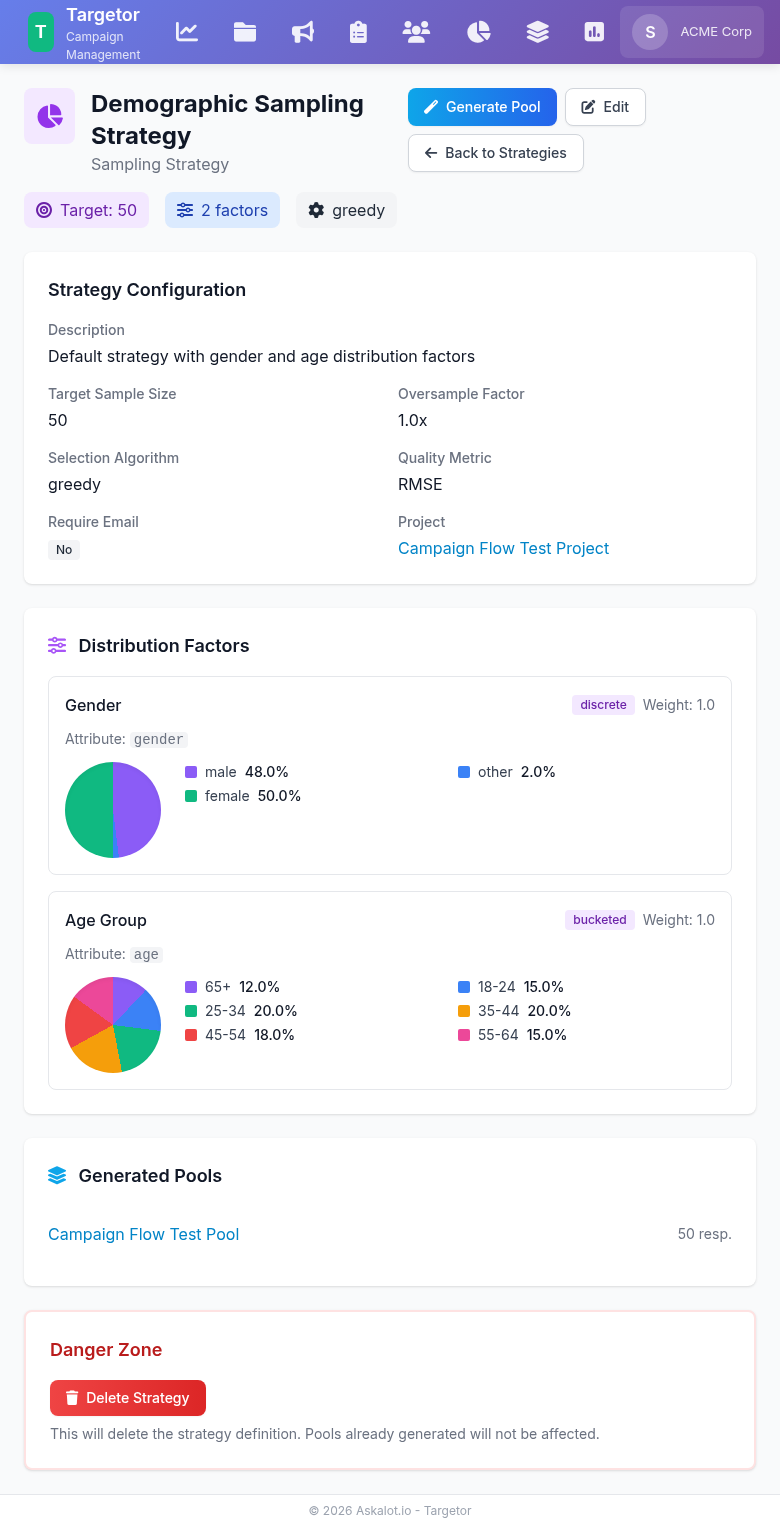
A sampling strategy with gender and age distribution factors. The pie charts visualize target proportions for each demographic category.
Default Strategy
In non-private organizations, every user starts with a default sampling strategy that includes standard demographic factors:
- Gender: male (48%), female (50%), other (2%)
- Age groups: 18-24 (15%), 25-34 (20%), 35-44 (20%), 45-54 (18%), 55-64 (15%), 65+ (12%)
The default strategy is ready to use for generating representative pools without any configuration. It is read-only — you cannot edit or delete it, ensuring a consistent baseline across your organization.
When you need different target distributions or additional demographic factors, create a custom strategy for your project.
Creating a Custom Strategy
- Navigate to Strategies in Targetor
- Click "New Strategy"
- Configure settings:
- Name: Descriptive identifier
- Project: Associated project (optional)
- Target Size: Desired pool size
- Algorithm: Selection method (greedy or random_constrained)
Distribution Factors
Add factors to define target demographics:
Discrete Factor (categorical):
Bucketed Factor (numerical ranges):
Selection Algorithms
Greedy Selection: - Iteratively selects respondents that minimize overall distribution error - Best quality scores but slower for large pools - Recommended for critical research with strict requirements
Random Constrained: - Random selection with per-category quotas - Faster execution with reasonable quality - Suitable for large-scale screening or panels
Quality Metrics
After pool generation, review quality metrics:
| Metric | Description | Target |
|---|---|---|
| RMSE | Root Mean Square Error | < 0.05 |
| MAE | Mean Absolute Error | < 0.03 |
| Chi-Square | Statistical fit test | < threshold |
| Max Deviation | Largest category error | < 0.10 |
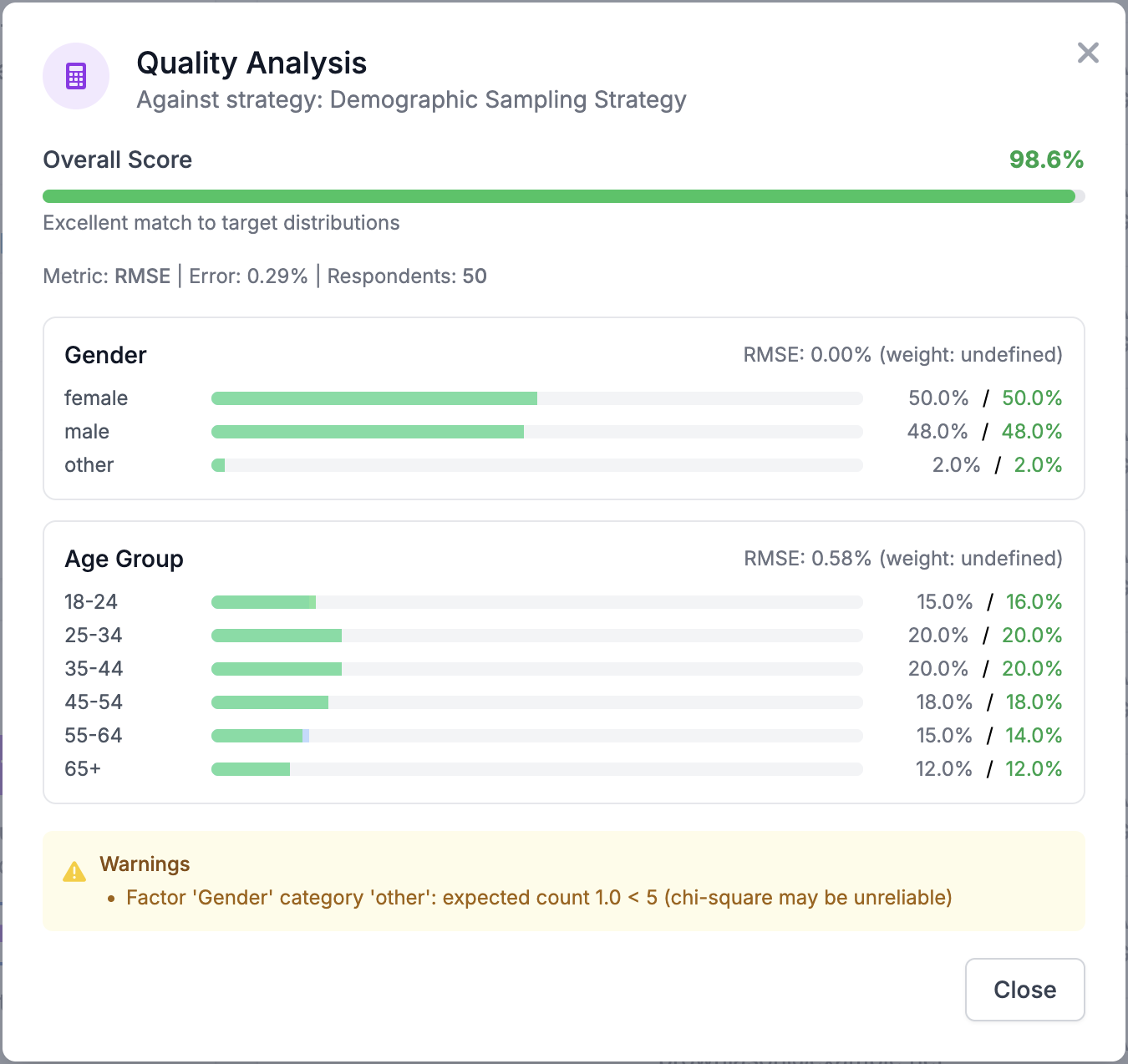
Quality analysis comparing target distributions against actual pool composition. Bar charts show target (left) vs. actual (right) percentages for each category.
Generating a Pool
- Open strategy details page
- Click "Generate Pool"
- Review preview with quality metrics
- Enter pool name and description
- Click "Generate" to create pool
The generated pool is linked to the source strategy for potential refresh operations.
Respondent Pools
Respondent pools organize respondents for campaign assignment and enable batch operations.
Pool Operations
Merge Pools: Combine multiple pools into one: 1. Navigate to Pools index 2. Click "Merge Pools" 3. Select source pools (2+) 4. Name the merged pool 5. Confirm (original pools are deleted by default)
Split Pool: Divide a pool into smaller segments: 1. Open pool details 2. Click "Split Pool" 3. Configure split count (2-N) 4. Choose method: - Random: Shuffle respondents before splitting - Sequential: Maintain original order 5. Confirm (original pool is deleted by default)
Refresh Pool: Re-run the source strategy to update a strategy-generated pool: 1. Open pool details (must be strategy-generated) 2. Click "Refresh from Strategy" 3. Confirm to regenerate with current respondent population
Recalculate Quality: Update quality metrics without regenerating: 1. Open pool details 2. Click "Recalculate Quality" 3. View updated metrics against the source strategy
Managing Pool Respondents
Add or remove respondents from manual pools: 1. Open pool details 2. Click "Manage Respondents" 3. Use filters to find respondents 4. Add/remove as needed
Strategy-Generated Pools
Pools generated from strategies cannot have respondents added or removed manually. Use refresh to update with the algorithm.
Demographic Targeting
Monitoring Quotas
Targetor monitors actual responses against target distributions and alerts when segments are under or over-represented.
Dashboard Indicators: - Green: Within 5% of target - Yellow: 5-10% deviation - Red: >10% deviation
Quota Enforcement
Two enforcement modes:
Soft Quotas: Monitor only. Allow responses beyond quota.
Hard Quotas: Stop accepting responses when quota reached. Redirect respondents to "quota full" page.
Best Practices
Campaign Design
- Set clear objectives before creating campaigns
- Test questionnaires in draft mode before launch
- Oversample by 2-3x to account for non-response
- Stagger invitations to manage response volume
Respondent Management
- Deduplicate before import to avoid duplicate surveys
- Validate email addresses to minimize bounces
- Set appropriate expiration for magic links
- Respect opt-outs and notification preferences
Interviewer-Assisted Interviews
- Balance workloads evenly across interviewers
- Monitor completion rates to identify struggling interviewers
- Provide clear instructions for interview protocols
- Review early responses to catch issues quickly
Data Quality
- Track incomplete surveys to identify problematic questions
- Monitor completion times for outliers
- Check demographic distributions against targets
- Export incrementally to catch issues early
Integration
REST API
Programmatic access to all Targetor functionality:
# List campaigns
GET /api/v1/campaigns

# Create respondent
POST /api/v1/respondents
{
  "name": "John Smith",
  "email": "[email protected]",
  "age": 34,
  "gender": "male"
}

# Create pool with respondents
POST /api/v1/pools
{
  "name": "Q1 Sample",
  "respondent_ids": ["uuid1", "uuid2"]
}

# Assign pool to campaign
PUT /api/v1/campaigns/{id}
{
  "pool_id": "pool-uuid"
}
See REST API Reference for complete documentation.
MCP Integration
For AI-assisted campaign management, Targetor operations are available through MCP (Model Context Protocol) tools covering projects, campaigns, respondents, pools, sampling strategies, and workload management.
See the MCP Interface Reference for the complete list of available tools and their parameters.
Troubleshooting
Common Issues
Invitations not delivered:
- Check respondent email validity
- Verify notification preference is not "none"
- Check spam/junk folders
- Review bounce reports
Low response rates:
- Send reminder invitations
- Extend magic link expiration
- Review questionnaire length and complexity
- Consider incentives
Quota imbalances:
- Adjust sampling strategy
- Send targeted reminders to under-represented groups
- Import additional respondents for specific segments
Interviewer bottlenecks:
- Redistribute workload
- Add additional interviewers
- Review interview duration